
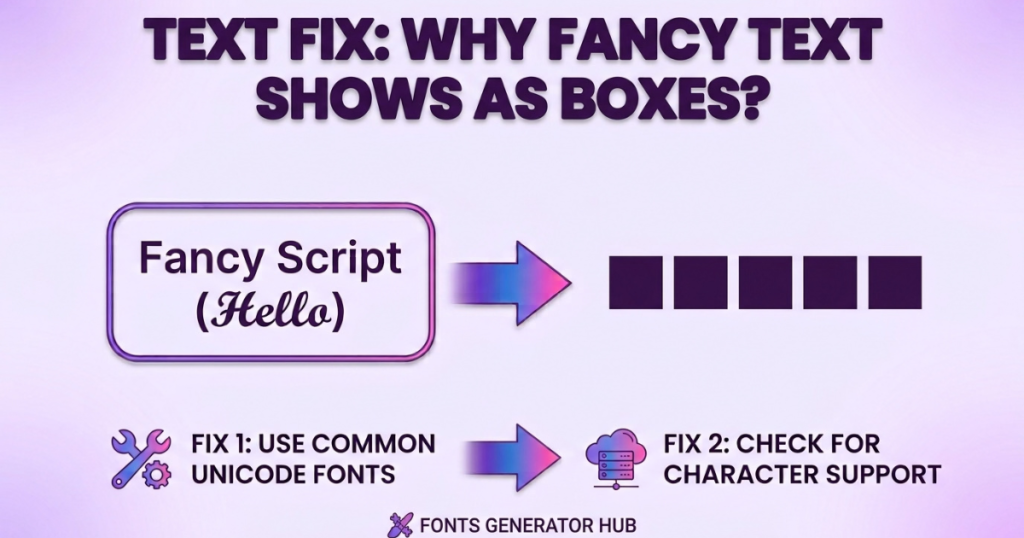
Why Fancy Text Shows as Boxes (“𝓗𝓮𝓵𝓵𝓸 → □□□□□) — and How to Fix It in Seconds
If your fancy text shows up as empty boxes (□), question marks, or plain letters — or won’t paste into an app at all — it’s almost always for one simple reason: the device or app you’re using doesn’t recognize those specific Unicode characters. It’s not broken, and it’s not your fault. This guide explains exactly why it happens (in plain language), which fancy styles are safe to use, and how to fix it in a few seconds.
The Quick Answer
Fancy fonts are made of special Unicode characters — real text characters that happen to look bold, cursive, or decorative. For them to display, the device showing them needs a font file that knows how to draw that character. When it doesn’t, you get one of these:
- An empty box (□ or ☐) — the device knows a character exists there but has no drawing for it, so it shows a placeholder box (nicknamed “tofu”).
- A solid box (█) or question mark (?) — similar: the character can’t be rendered.
- Plain letters — the app stripped the fancy characters and kept only standard text.
- Nothing pastes — the app blocked the characters entirely (common in strict username fields).
All four come down to the same thing: that character isn’t supported where you’re trying to use it. Let’s break down why — and how to avoid it.
Using fancy text on social apps? Check which platforms support Unicode fonts and where they display correctly.
What Do the Boxes and Symbols Mean?
You’ve probably seen these and wondered:
- □ (empty box) — a “missing glyph” placeholder. The device recognizes a character is there but has no font to draw it. Designers nickname it “tofu” (which is where the font “Noto” gets its name — “no more tofu”).
- ☐ (ballot box) — sometimes this is an actual character (an empty checkbox symbol), and sometimes it’s a fallback box. Context tells you which.
- █ (full block) — a solid block, another way a device shows an unrenderable or intentionally blocked character.
- ? or ◌ — other fallback markers for characters the system can’t display.
If you’re seeing these where fancy text should be, it means the character didn’t render. If you want the actual symbols (☐ □ █ as real characters), those exist too and can be copied — but usually people see them by accident when fancy text fails.
To pinpoint exactly which character is failing, you can find the Unicode code point behind the fancy text and check what it is.
Why Fancy Text Doesn’t Work in Some Apps
There are three main reasons, and knowing which one you’re hitting tells you how to fix it:
1. The Device Lacks the Character (Most Common)
Every device needs a font file that can draw each Unicode character. Modern phones and computers support common styled characters (bold, cursive, italic) — but older devices or ones with limited fonts may not have drawings for rarer decorative styles. So the sender sees fancy text, but the viewer’s older phone shows boxes. This is the #1 cause.
2. The App Filters or Strips the Characters
Some apps deliberately remove or block non-standard characters:
- Gaming names (PUBG, Free Fire, BGMI) filter names heavily — many fancy styles get rejected or silently dropped. → Try gaming fonts.
- Usernames / @handles on most platforms allow only letters, numbers, and underscores — fancy text won’t save there (it works in display names and bios instead).
- Some forms and older websites strip anything outside basic text.
Setting up a styled username? Check where Unicode usernames work and where they get rejected before you commit.
3. The App Doesn’t Fully Support Unicode
A few older apps, legacy software, or certain input fields only handle basic ASCII (plain English letters and numbers). Paste fancy text there, and it either shows boxes or reverts to plain letters.
Android vs iPhone: Why They Look Different
The same fancy text can look different on Android and iPhone — and this trips people up constantly. Here’s the honest reason:
- Different default fonts. iPhones/iPads use Apple’s San Francisco font system with Apple’s own emoji and glyph set; Android devices use Roboto/Noto with Google’s. Because each has a different set of character drawings, a decorative Unicode character might render cleanly on one and show as a box on the other.
- Emoji look different too. The same emoji (🎃, 👻) is drawn by Apple on iPhone and by Google on Android — so a fancy-text-plus-emoji combo can look noticeably different across the two.
- Update level matters more than the brand. A recent iPhone and a recent Android both support most styled characters. An old device of either kind is where boxes appear — because it’s missing newer character drawings. So it’s less “Android vs iPhone” and more “new vs old.”
Practical takeaway: if your audience is mixed (some iPhone, some Android), stick to the widely-supported styles (bold, italic, cursive, small caps) — those render on both. Test on both if you can, or send it to a friend on the other platform.
Noticed copied text taking up more space than expected? Here’s why some Unicode characters become wider after copying — full-width characters and combining marks explained.
Browser Differences
Fancy text can also render differently across web browsers, for the same underlying reason — each browser leans on the operating system’s fonts to draw characters:
- Chrome, Safari, Firefox, and Edge mostly display common styled characters the same way, since they use the device’s system fonts. Differences show up with rarer characters.
- Safari (on Mac/iPhone) uses Apple’s font stack; Chrome on Android uses Google’s — so the same rare character may render in one browser and box in another, even on the same page.
- Older browsers (or very outdated versions) are the most likely to show boxes, because they pair with older font support.
Practical takeaway: If you’re checking how your fancy bio looks, view it in the browser your audience actually uses (mobile Chrome/Safari for most social traffic) — not just your desktop browser, which may render more than a phone does.
Which Fancy Styles Are Safe to Use?
Here’s the honest, practical part. Some styles work almost everywhere; others are risky. Stick to the safe ones when it matters:
| Style | Reliability | Notes |
|---|---|---|
| Bold (𝗕𝗼𝗹𝗱) | ✅ Very high | Works almost everywhere |
| Italic (𝘐𝘵𝘢𝘭𝘪𝘤) | ✅ Very high | Widely supported |
| Cursive (𝓒𝓾𝓻𝓼𝓲𝓿𝓮) | ✅ High | Safe on modern devices |
| Small Caps (ꜱᴍᴀʟʟ) | ✅ High | Compact and reliable |
| Gothic (𝕲𝖔𝖙𝖍𝖎𝖈) | ✅ High | Occasional box on very old devices |
| Double-struck (𝔻) | ⚠️ Medium | May box on older phones |
| Bubble / Squared (Ⓐ 🅰) | ⚠️ Medium | Some devices box these |
| Heavy zalgo / stacked marks | ❌ Low | Often breaks or looks messy |
| Rare decorative symbols | ❌ Low | Highest box risk |
Rule of thumb: for anything important (a username others must read, a professional bio), use bold, italic, cursive, or small caps. Save exotic styles for personal use where you’ve confirmed they render.
How to Fix Fancy Text That Shows as Boxes
- Switch to a safer style. If a style boxes, swap it for bold, italic, cursive, or small caps — the most widely supported.
- Test before you post. Paste your text into the actual app (or send it to yourself) and check how it looks before making it your name or bio.
- Check the character count. Some fields cut off long styled text; if it’s truncated, shorten it.
- Use fewer decorations. Stacked symbols and combining marks are the most fragile — one clean style beats five layered ones.
- Update your device. If you’re seeing boxes when viewing others’ text, your device may lack recent fonts — a system/OS update often adds them.
- Accept platform limits. If a username field rejects fancy text, that’s the platform’s rule — use the styled text in your display name or bio instead.
Working with Arabic or Urdu text specifically? Arabic script has extra rendering quirks — connected letter forms, right-to-left flow, and vowel marks — that make it look different across devices even more often. See why Arabic text looks different on different devices for the script-specific details.
Related Font Confusions (Honest Clarifications)
A few things people search alongside this that are actually different issues — cleared up honestly:
- “Why are my fonts not working?” — If it’s copy-paste fancy text, it’s the box/support issue above. If it’s an installed font in a program (Word, a design app) not showing, that’s a separate software/installation problem — reinstall the font or restart the app.
- “How do I change the font in all apps?” — That’s a device setting (some Android phones and iPhones let you change the system font in Settings → Display), which is different from copy-paste fancy text. Copy-paste fonts don’t change your device font; they just insert styled characters.
- “How to fix a corrupted font?” — A corrupted installed font file needs to be removed and reinstalled on your device — unrelated to copy-paste Unicode text (which can’t “corrupt,” since it’s just characters).
- “How to increase font size in apps?” — That’s an accessibility/display setting (Settings → Display → Font size), not fancy text. Copy-paste fonts change style, not size (though “small text” uses tiny Unicode characters for a small look).
The short version: copy-paste fancy text is about inserting styled characters, not changing your device’s fonts or settings. If your issue is installed fonts or system settings, that’s a device matter, not a Unicode one.
Frequently Asked Questions
Why is my text showing up as boxes?
The device viewing it doesn’t have a font for those Unicode characters. Switch to a widely supported style (bold, italic, cursive), and it’ll display for everyone.
What is this symbol ☐?
Usually a “missing glyph” placeholder — the device can’t draw the intended character, so it shows an empty box. (It can also be an actual empty-checkbox symbol, depending on context.)
What character is this █?
A “full block” character — often a fallback shown when a character can’t be rendered or was blocked, though █ is also a real block symbol used in graphics.
What is □?
An empty box, the standard “missing character” placeholder (nicknamed “tofu”). It means the font can’t display whatever character is there.
Why doesn’t fancy text work in my game name?
Games like PUBG and Free Fire filter names — many fancy styles get rejected. Use simpler styles (bold, gothic) and test before spending a rename.
Why can’t I paste fancy text in my username?
Most platforms require plain letters, numbers, and underscores for the @username. Fancy text works in your display name and bio instead.
How do I stop fancy text from showing as boxes?
Use safe styles (bold, italic, cursive, small caps), test before posting, and keep decorations minimal. Update your device if you see boxes when viewing others’ text.
Final Word
Fancy text showing as boxes isn’t a bug — it’s just a character the viewing device can’t draw, or an app that filters non-standard text. The fix is simple: stick to widely-supported styles (bold, italic, cursive, small caps) for anything that matters, keep decorations light, and test before you post. Want to understand the whole system behind it? Read our guide on how fancy fonts work, or try a reliable style now with our font generator.